
Adding & editing people
Place people on the canvas, then edit their details in the properties panel.
Add a person
- Select the Add individual tool (A) from the top toolbar. A panel of symbol types opens.
- Pick the symbol to place: Male, Female, or Other under Basic, or a transgender or orientation variant. Male is selected by default.
- Click the canvas to place that symbol.
- Switch to the Select tool (S) to move a person or open their details.
Changing the symbol
A person’s symbol usually updates automatically from their gender, status, and condition fields in the properties panel. To set it manually, click the symbol button in the panel header and choose an option. For symbol meanings, see the symbols reference.
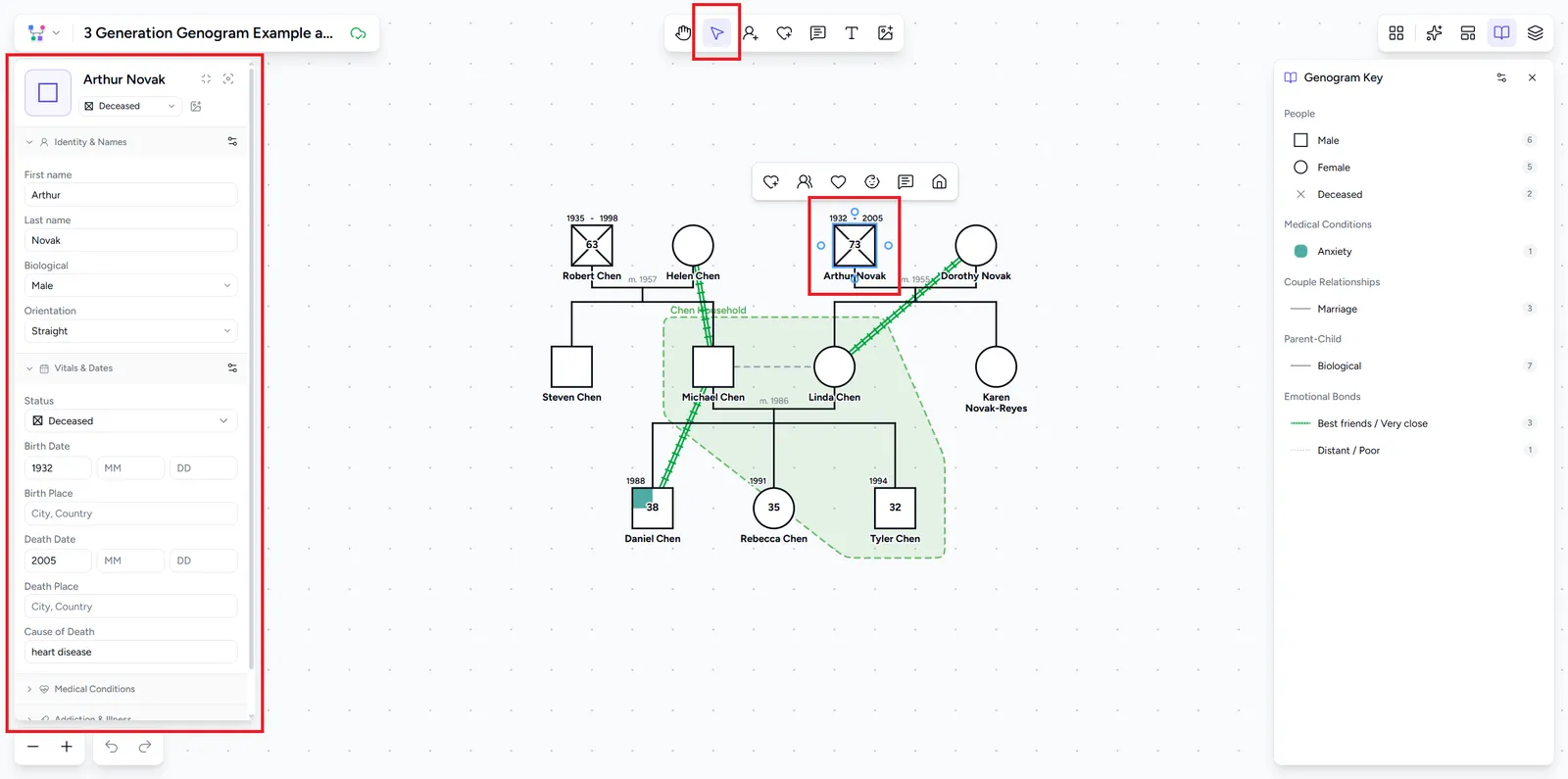
To edit anyone, click them with the Select tool. The properties panel opens with every field below, grouped into collapsible sections.
Name a person
Enter a First name and Last name in the Identity & names section.
Add titles, middle names, and nicknames
Select More name fields in the section to show the extra name fields: Title, Middle name, Suffix, Nickname, Maiden name, and Alternative name.
Set sex, gender identity, and orientation
These fields, in Identity & names, decide the person’s symbol shape: a square for male, a circle for female, a diamond for non-binary or other.
- Biological - male, female, intersex, or unknown
- Identity - male, female, non-binary, other, or unknown. It follows the biological sex until the two are set to different values.
- Show as trans - adds transgender notation. It only shows up when the biological sex and gender identity differ.
- Orientation - straight, homosexual, bisexual, or other
For what each shape and marker means, see the symbols reference.
Record a birth date
Enter a Birth date and Birth place in the Vitals & dates section. Any part of the date can be left blank, so you can record just a year. The person’s age shows on their symbol while Age on symbol is on in the Views panel.
Mark someone as deceased
Set Status to Deceased. The symbol gets a cross through it, and Death date, Death place, and Cause of death fields appear. All are optional.
Record a pregnancy loss
Pregnancy loss can be set as:
- miscarriage - loss of a pregnancy before the 20th week
- stillbirth - loss of a pregnancy after the 20th week
- abortion - an intentionally ended pregnancy
Pregnancy status can be changed by adding a new child to a couple, by picking the status from the dropdown at the top of the properties panel, or inside the Vitals & dates section.
In case of a stillbirth you may set the birth date, and the death date will automatically be set to match.
In case of an unborn child, you may only set a death date, which is roughly when the miscarriage or abortion happened.
Track medical conditions
Track a person’s active medical conditions by selecting them from the list in the Medical conditions section, or add a custom one. On the genogram, each condition is drawn as a quarter of the symbol in that condition’s color, clockwise from the top left in the order of the list. With five or more conditions, the symbol is divided into equal slices instead. Click a selected condition again to unset it.
You may also set an optional onset date for each condition.
There is no limit to how many you can track, but we recommend 4-5 per person to keep the genogram readable.
Mark addiction or illness
The Addiction & illness section records a person’s mental or physical illness and substance abuse:
- illness - a psychological or physical problem
- addiction - alcohol or drug abuse
- suspected addiction - suspected alcohol or drug abuse
- recovery - in recovery from substance abuse
- remission - an illness that is in remission
Combined states cover both at once, like active addiction alongside an illness, or recovery while still ill.
Only one state applies at a time. Click the selected one again to unset it. These states follow Monica McGoldrick’s standard genogram notation. Medical conditions are more specific, so use those to record a particular illness.
Record background details
The Background section records a person’s cultural and social background:
- Countries of origin - shown as flags next to the name. Add as many as apply.
- Migration - Immigrated draws two wavy lines on the line above the symbol and 2+ cultures draws one. Year of migration appears when Immigrated is chosen.
- Race / ethnicity - free text in the person’s own words, shown under the name
- Religion - shown as an icon under the name. Choose No religion for someone who isn’t religious, and tick Non-practicing to draw the icon with a dashed outline.
- Income level - from $ (poverty) to $$$$$ (wealthy). Click the selected level again to unset it.
- Education - the highest level reached, shown as a short label like BA or PhD
- Occupation - shown as grey text under the name
Hover a badge on the genogram to see what it means. The Genogram key lists every value in use. To hide an item, turn it off under Background in the Views panel.
Highlight the main person
The panel header has two toggles:
- Click Toggle index person to outline the symbol in yellow and mark who the genogram is about.
- Click Toggle secondary person to shrink the symbol and de-emphasize someone who is secondary information, such as a new spouse from a remarriage that the genogram does not center on.
Add a photo to a symbol
Click Symbol image in the panel header to put a photo inside the symbol. Click it again to remove the photo. To place a standalone image on the canvas instead, see Notes, text & images.
Add custom information
Use Other information for fields that don’t exist elsewhere, like hobby or languages spoken. Select Add information, enter a name (for example “Hobby”) and a value (“Chess”), and save. There is no limit to the number of entries.