
Households
A household groups people who live together and shades them as a region on the canvas. Useful for blended families and multi-generation homes.
Create a household
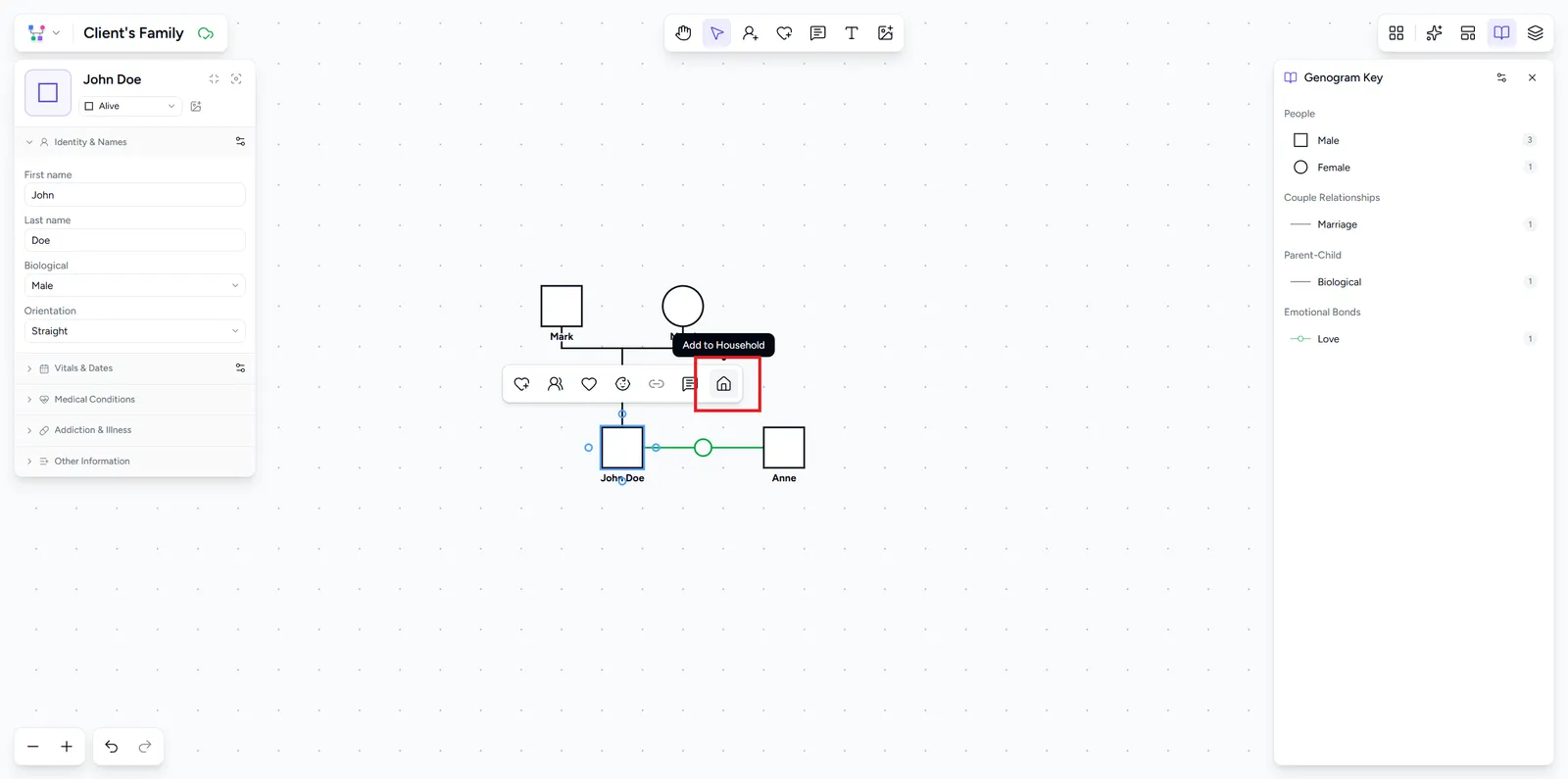
- Select a person and choose Add to household (the house icon) from the selection toolbar.
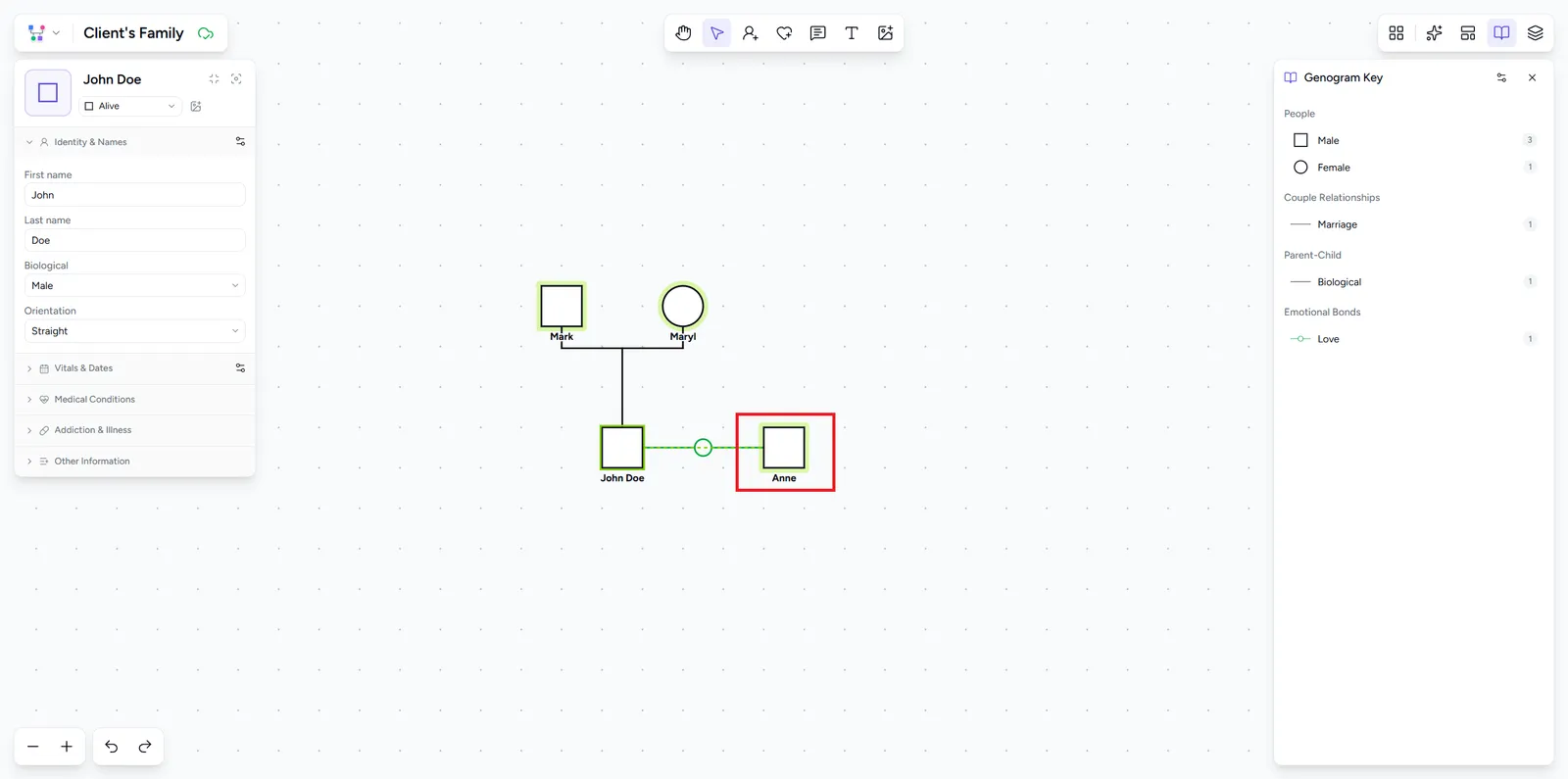
- Click the person who shares the home. To join an existing household instead, click its shaded region.
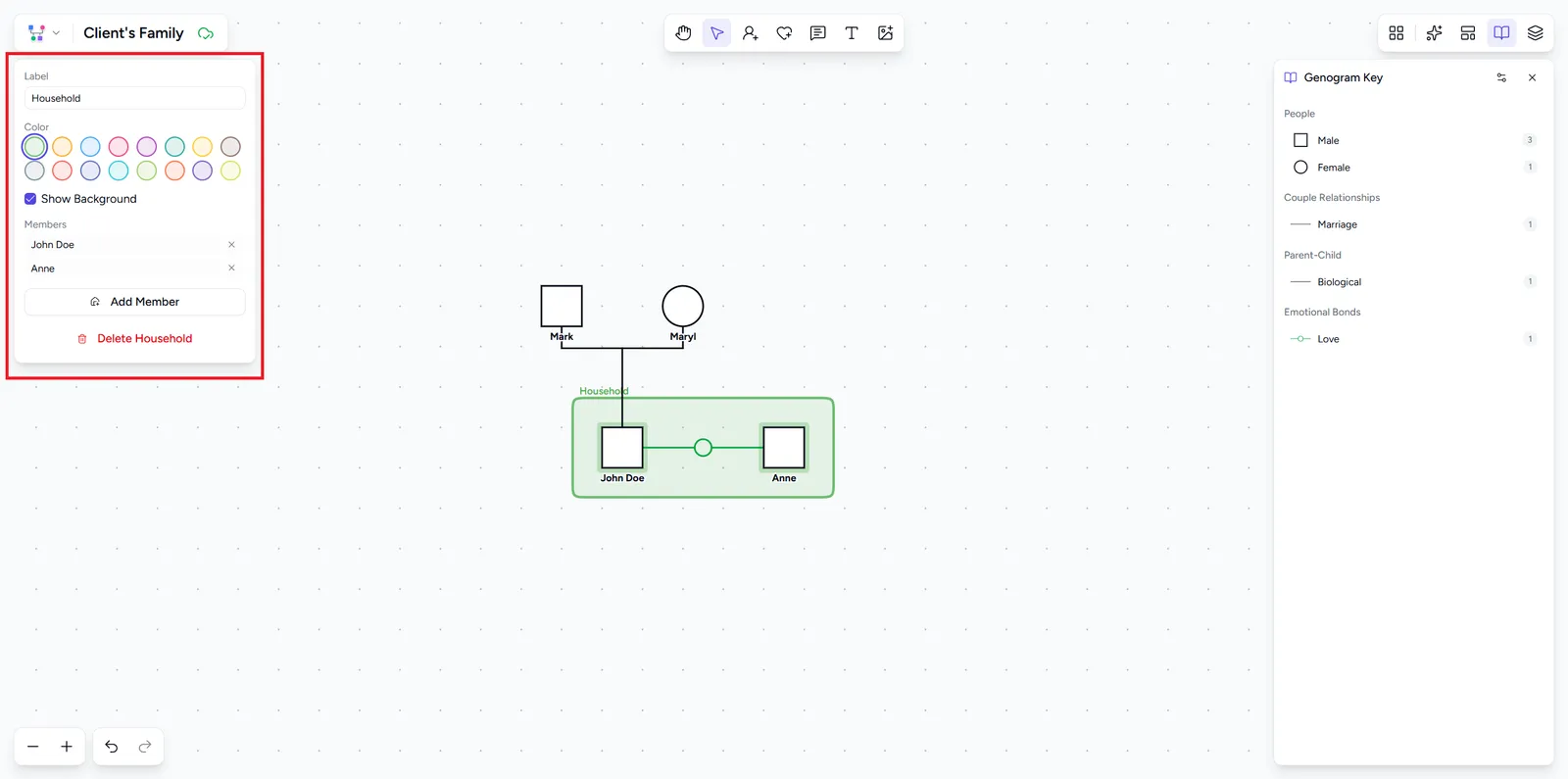
A shaded region appears around the members and the household panel opens.
Create from a multi-selection
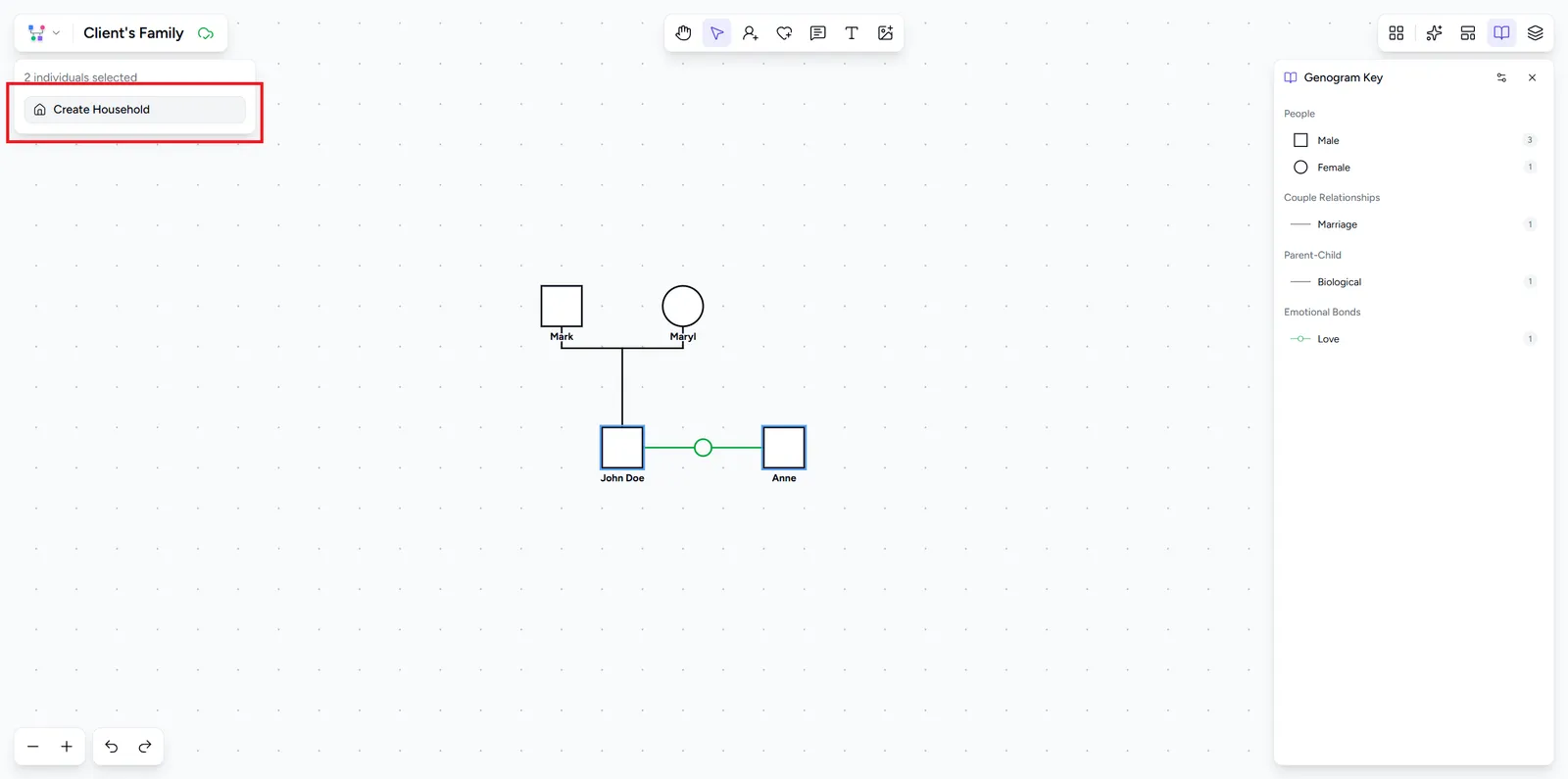
You can also start a household from several people at once:
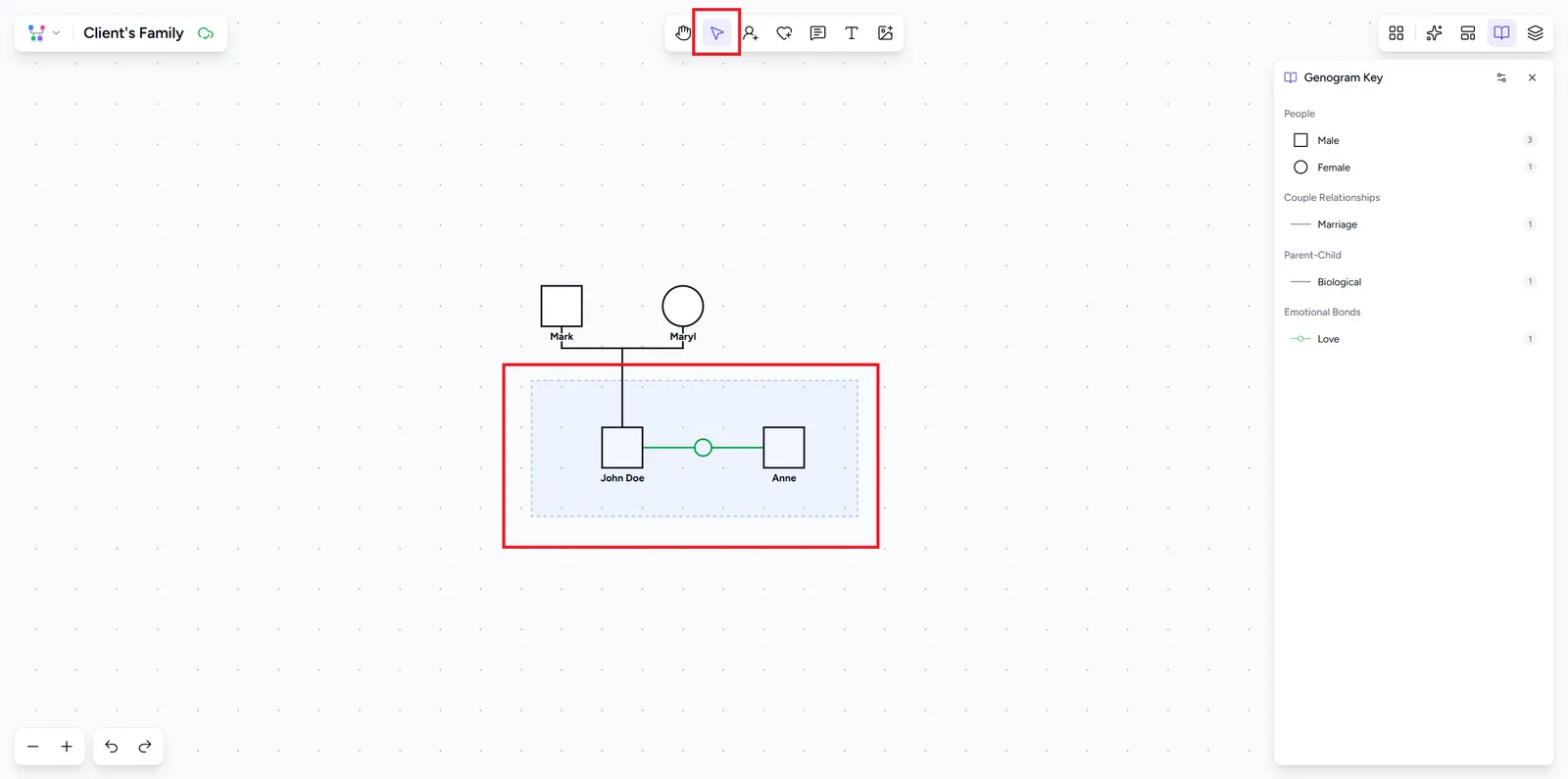
- With the Select tool, drag a box around the people, or Shift-click them one by one.
- Choose Create Household in the panel that appears.
Manage members
Click the shaded region to select the household and open its panel. From there you can set a Label, add more people, or remove a member. Removing a member that would leave only one person deletes the household.
Appearance and exports
Pick a Color from the palette and toggle Show background for the shaded fill. The shading is part of the diagram, so it shows up in exports and shared views.