
Connecting people
Genogram Pro builds family structure for you. Select a person, add the relative you need, and the connecting lines are drawn automatically.
The selection toolbar
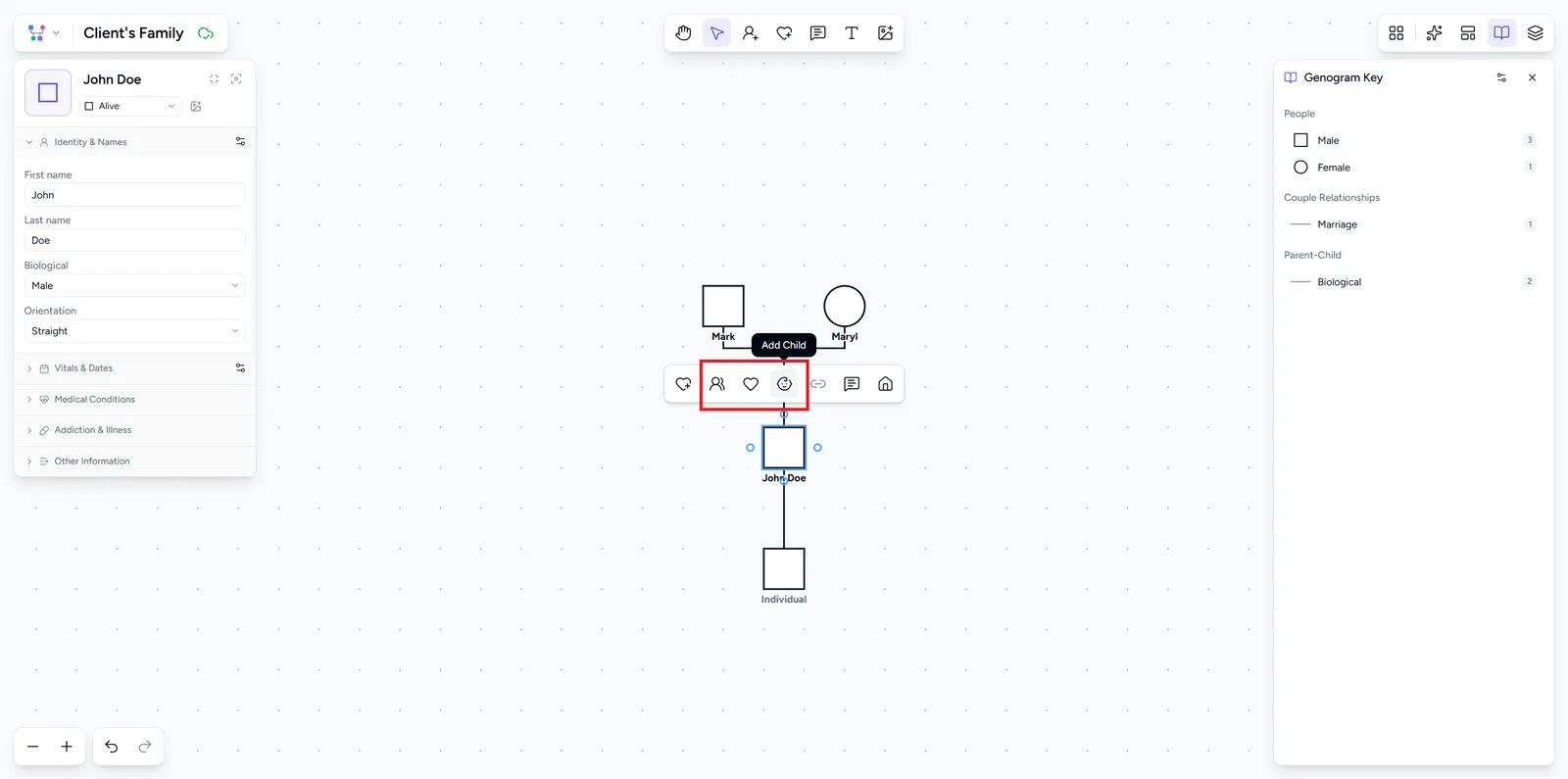
Click a person with the Select tool (S) to show a toolbar beside them:
- Add partner - adds a partner and a couple line
- Add parents - adds a parent couple above the person
- Add child - adds a child below the person
- Select twin - pairs the person with a sibling as twins. Only shown when the person has parents and a sibling with the same parents.
- Add emotional bond, Add note, and Add to household - covered on their own pages
Connection bubbles
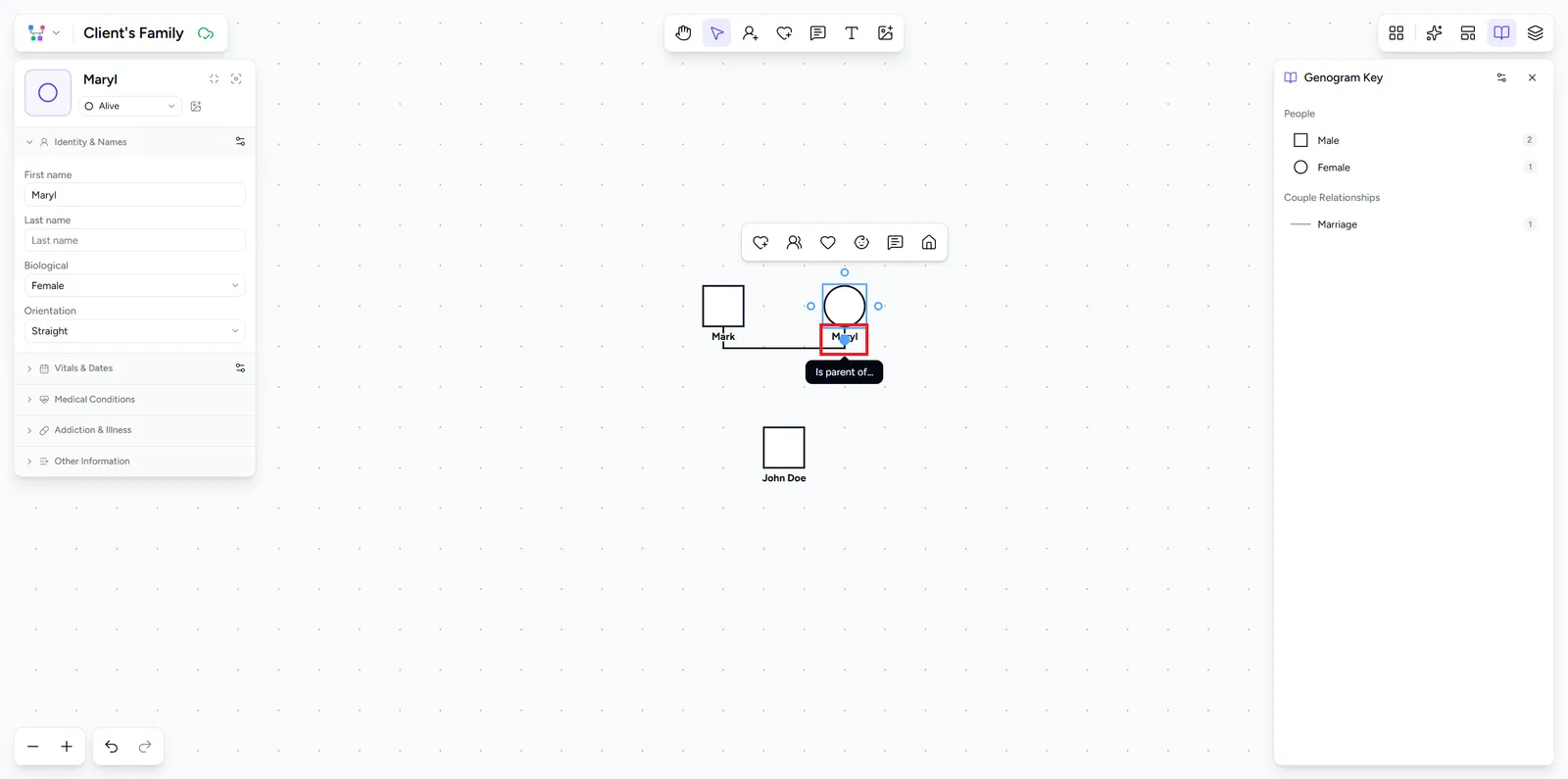
Hover over a person, or select them, to show four small circles on the edges of their symbol. Drag one onto another person to connect the two directly, or into empty space to create the relative right where you let go. The bubble you grab decides the relationship:
- Left or right - creates a couple line, marriage by default. Dropped in empty space, it adds a partner of the opposite sex.
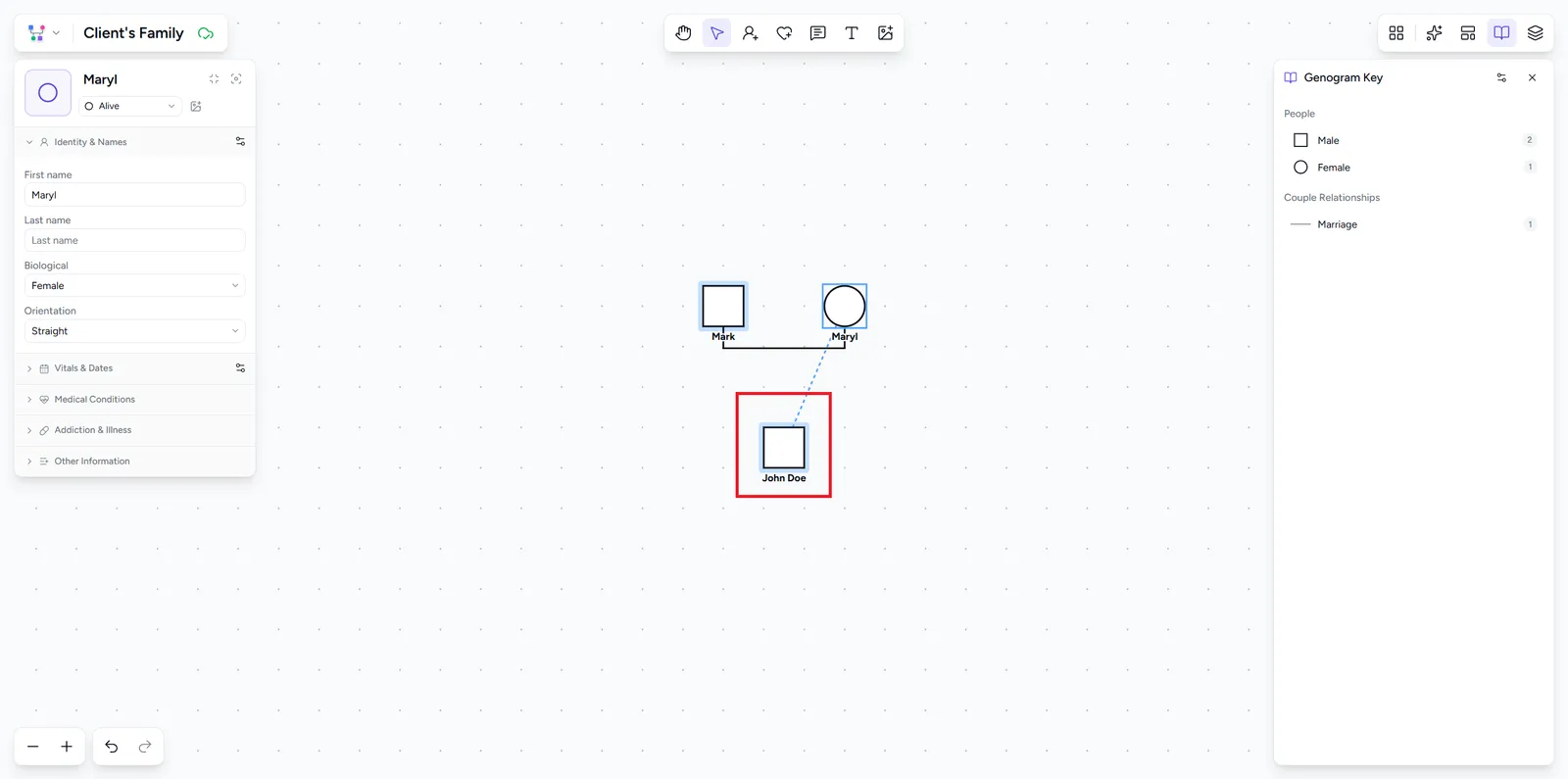
- Bottom - makes the person a parent of the person you drop on, or adds a new child where you let go
- Top - the reverse: the person you drop on becomes a parent. Drop it on a couple's line to make the person their child, or in empty space to add a parent.
While you drag, a dashed preview shows the line that will be drawn and a faded symbol shows the person a drop would create. Letting go too close to someone cancels the drag, and so does a right-click or Esc.
This is the quickest way to connect people who are already on the canvas - say, a child you placed separately or partners from two family branches.
Add a child from a couple line
Hover over the line between two partners to show a small plus bubble in its middle. Click it to add a child to that couple, drag it onto a person to make them the couple's child, or drag it into empty space to place a new child there.
Add a partner
Select a person and choose Add partner. A partner of the opposite sex appears to the right, joined by a marriage line by default. Change the line type in the side panel (see below).
Add parents and children
To extend upward, select a person and choose Add parents. With no parents yet, this adds a mother and father joined by a marriage line. With one parent already there, it adds the second. A person can have at most two parents this way.
To extend downward, select a parent and choose Add child. If the parent has more than one partner, you pick which couple the child belongs to. Repeat for as many generations as you need.
Add twins
Select a child, choose Select twin, then click a sibling who has the same parents. The two are linked as a twin pair, fraternal by default. Change it to identical, or unlink the twin, in the side panel.
Change a relationship type
Click the line between two people to select it, then pick a type in the side panel:
- Couple lines - marriage, separation, divorce, nullity, widowed, engagement, cohabitation, committed relationship, dating, affair, and more, grouped by kind. Some types add their own date fields, like a marriage or divorce date.
- Parent-child lines - biological, adoptive, foster, or other/unknown
- Twin lines - fraternal or identical
For what each line style means, see the symbols and lines reference in the guide.