
Interface overview
A quick tour of the two screens you will use: the dashboard, where your genograms live, and the editor, where you build them.
The dashboard
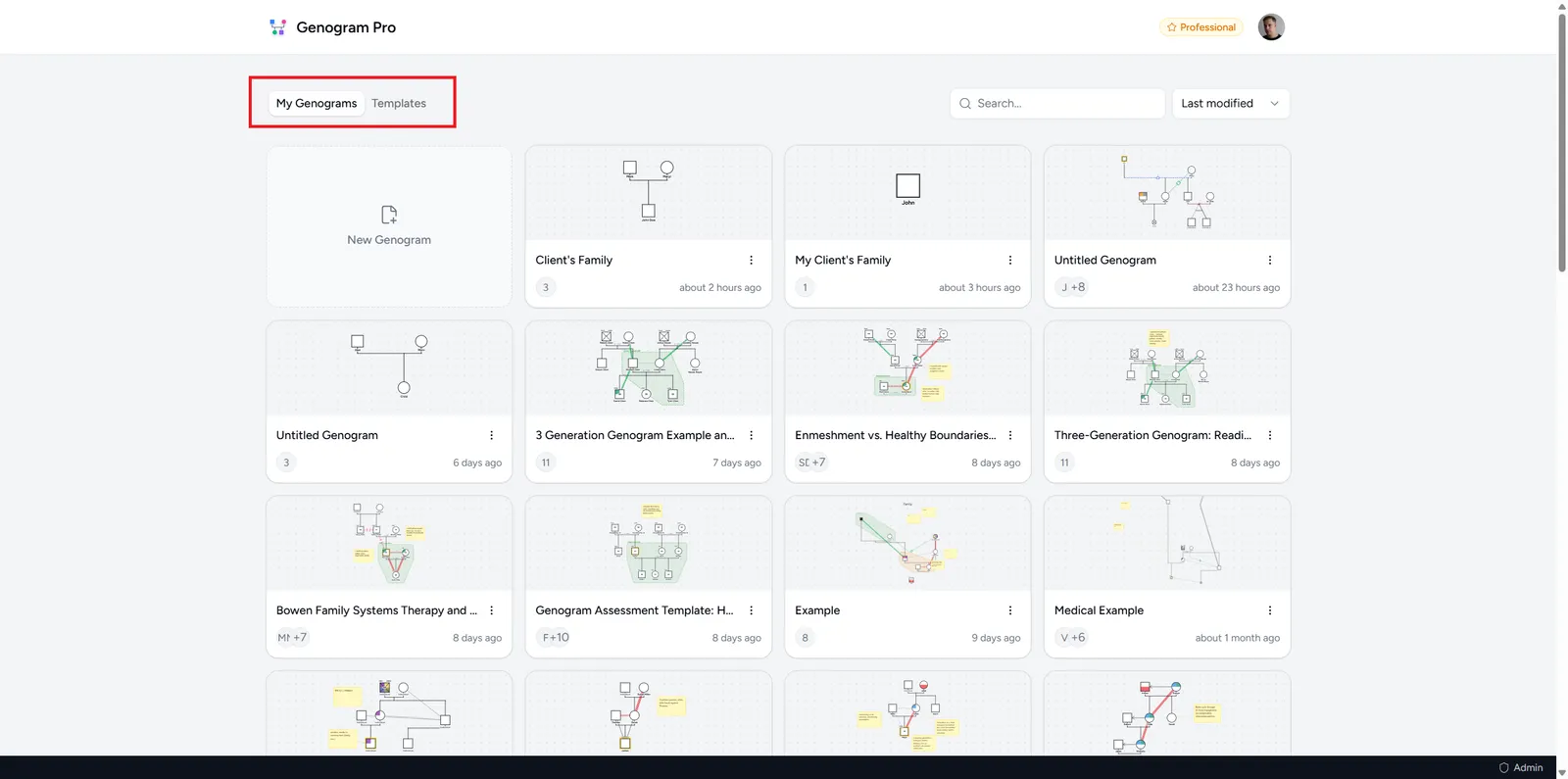
The dashboard lists your genograms and templates, and lets you search and sort them. From here you can create, open, rename, duplicate, or delete a genogram. Templates have their own tab. See Importing & templates for those.
The editor canvas
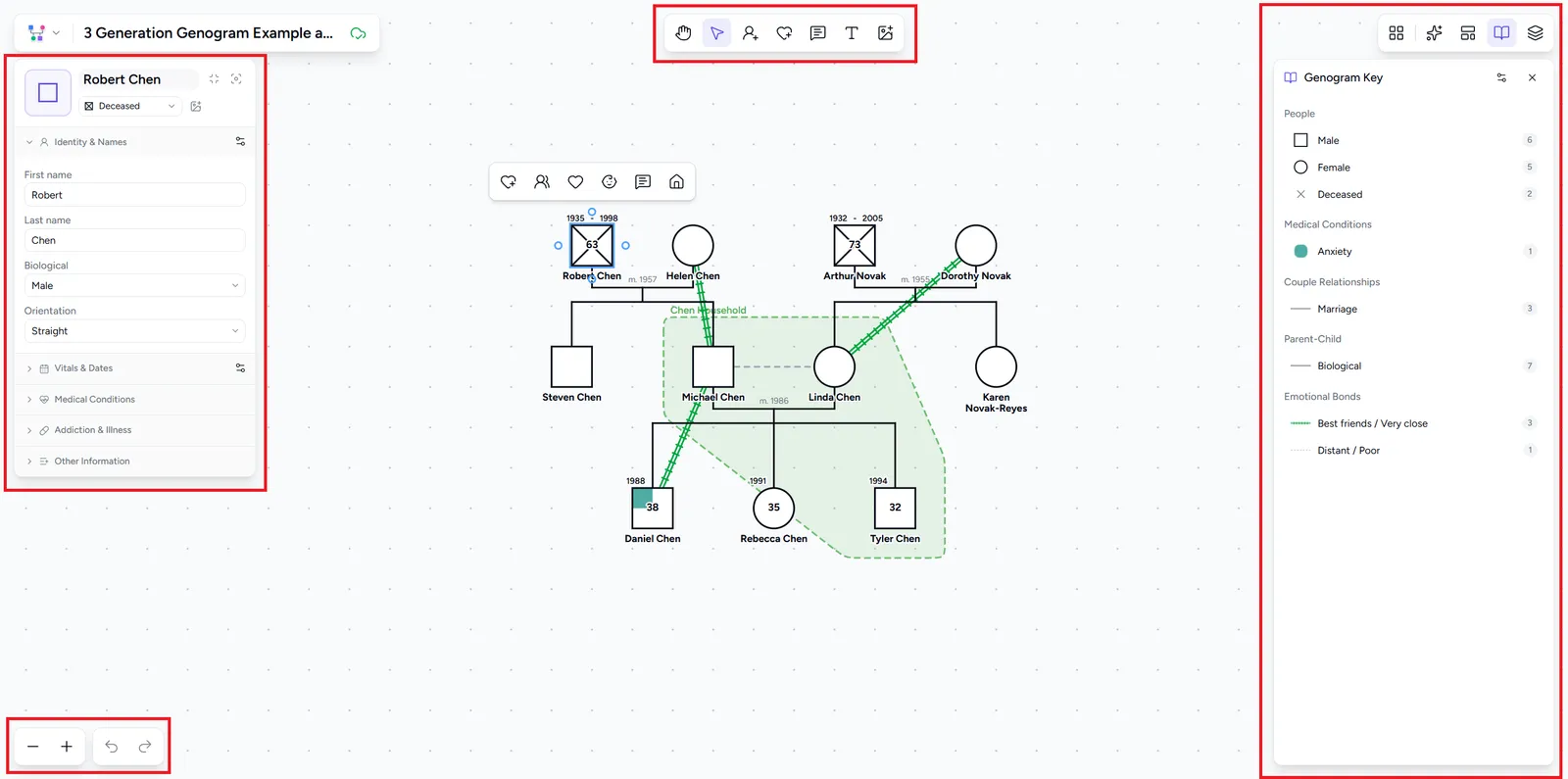
Opening a genogram takes you to the editor. The large central area is the canvas, where your diagram lives. Pan, zoom, select people and lines, and drag things into place. The controls around it are grouped into a top toolbar, a side properties panel, and a right panel.
The top toolbar
The toolbar holds the tools for adding things to the canvas:
- Hand (H) - pans the canvas
- Select (S) - selects and moves people, lines, and notes
- Add individual (A) - places a new person
- Add emotional bond (E) - draws an emotional line between two people
- Add note (N) - adds a note
- Add text (T) - adds a free text label
- Add image - uploads an image onto the canvas
The side panel
Select a person, connection, household, or note to open a panel with everything you can edit. For a person, that means names, gender, dates, medical conditions, and more. See Adding & editing people.
Panels and the sidebar
The island at the top right of the canvas holds the tools that act on the whole diagram: Auto-arrange, which repositions everyone by generation, the Genogram key, which lists every symbol, line, and condition in the diagram, and the Patterns and Views panels. Patterns (⇧ + P) are ready-made family structures to place on the canvas, plus the ones you save yourself. The bottom left holds the zoom controls (Ctrl + + and Ctrl + -), undo, and redo. The buttons at the right end of the header open the sidebar beside the canvas for the AI assistant and Version history; the sidebar stays open while you move between the tabs of a document. See The AI assistant and Arranging the canvas.
Menu, tabs, and saving
The header above the canvas starts with the logo, which opens the menu: Back to diagrams, New genogram, Save as template, Export, Import, Share, and Tags. Next to it, one tab per part of the document: the genogram first, then each of its ecomaps, with a + button to add one. Click a tab to switch, and double-click it to rename it. The dots on a tab open Rename, Duplicate, Export, and Delete. The status icon after the tabs shows whether your changes are saved. Your work saves automatically and there is no manual save. Undo with Ctrl + Z, redo with Ctrl + ⇧ + Z or Ctrl + Y, across every tab of the document. The keyboard shortcuts page lists every key.