
Quick start
Build your first genogram in a few minutes: create a diagram, add a couple and a child, fill in details, and export.
1. Create a genogram
From your dashboard, select New genogram, type a name into the title at the top of the dialog, and choose Create to start from a blank canvas. If you already know the family structure, pick Generate with AI instead and describe the family, and the assistant drafts the genogram for you to edit (see AI assistant). The same dialog also imports a photo, GEDCOM or .genogrampro file and starts a genogram from one of your templates or from a published example.


2. Add the first person
Choose the Add individual tool (A) from the top toolbar, pick a symbol in the panel that opens, then click the canvas to place it. Start with the index person - the client or family member the genogram centers on - since every generation builds out from them. When you are done placing people, right-click to drop the tool and return to Select (S).
3. Add relatives
Click a person with the Select tool to show their selection toolbar. From there you can build the family around them:
- Add partner joins a partner to the selected person with a couple line.
- Add child places a child in the generation below, hanging from the couple line.
- Add parents adds a parent couple in the generation above.
Work one generation at a time: give the index person their partner and children first, then add parents on each side until you have the three generations a standard genogram covers.
4. Record details
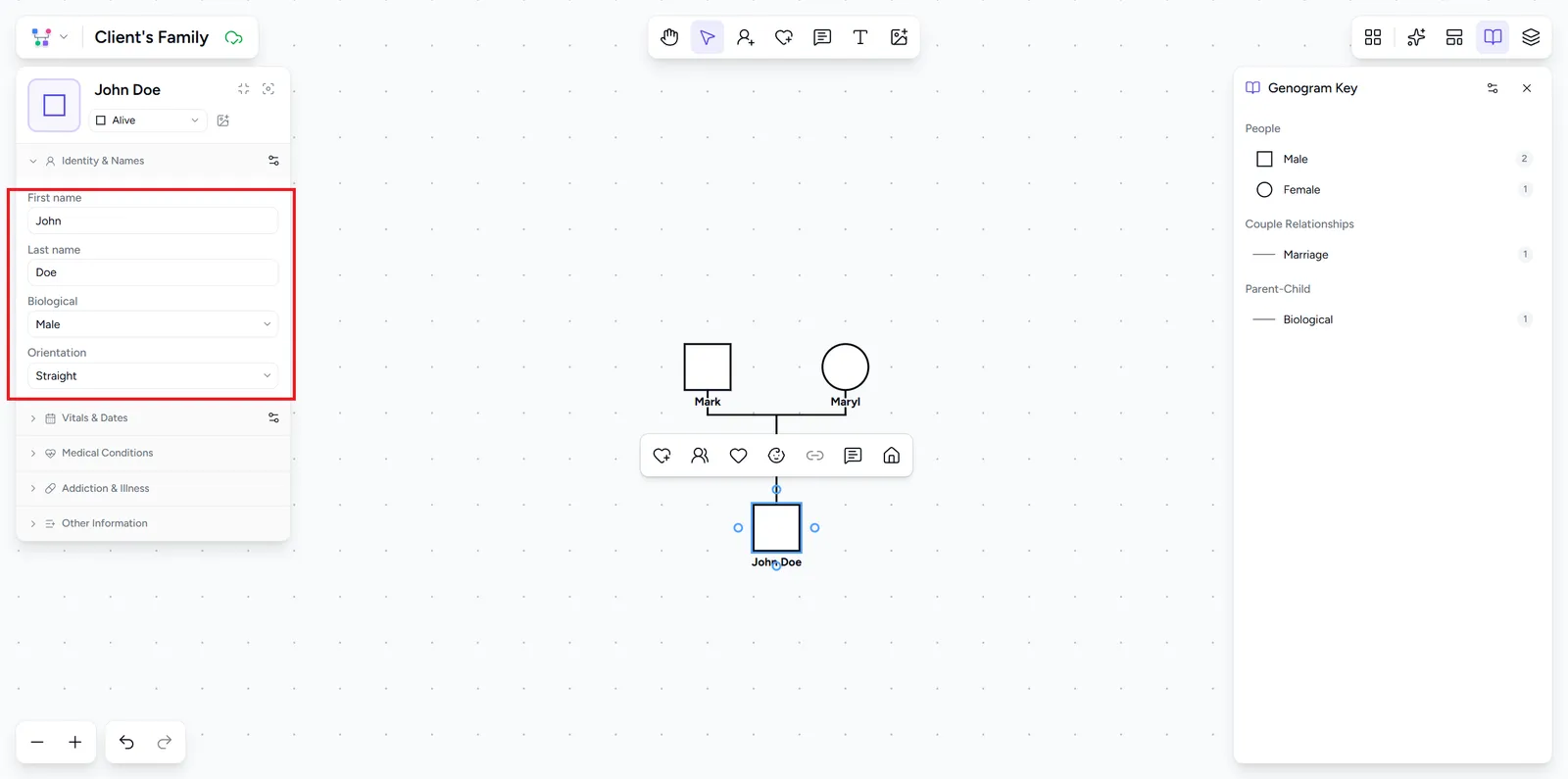
Select a person to open the properties panel. Fill in their name under Identity & names, set sex and gender identity, and add dates under Vitals & dates. You can also record medical conditions, addiction and illness, and custom notes. Every field is explained in Adding & editing people.
5. Arrange and export
With the family in place, line up the layout:
- Select Auto-arrange in the right panel to lay the diagram out by generation.
- Drag anyone whose position you want to adjust. The connection lines follow.
- You can pan with a middle-click drag in any tool, and undo any change with Ctrl / ⌘ + Z.
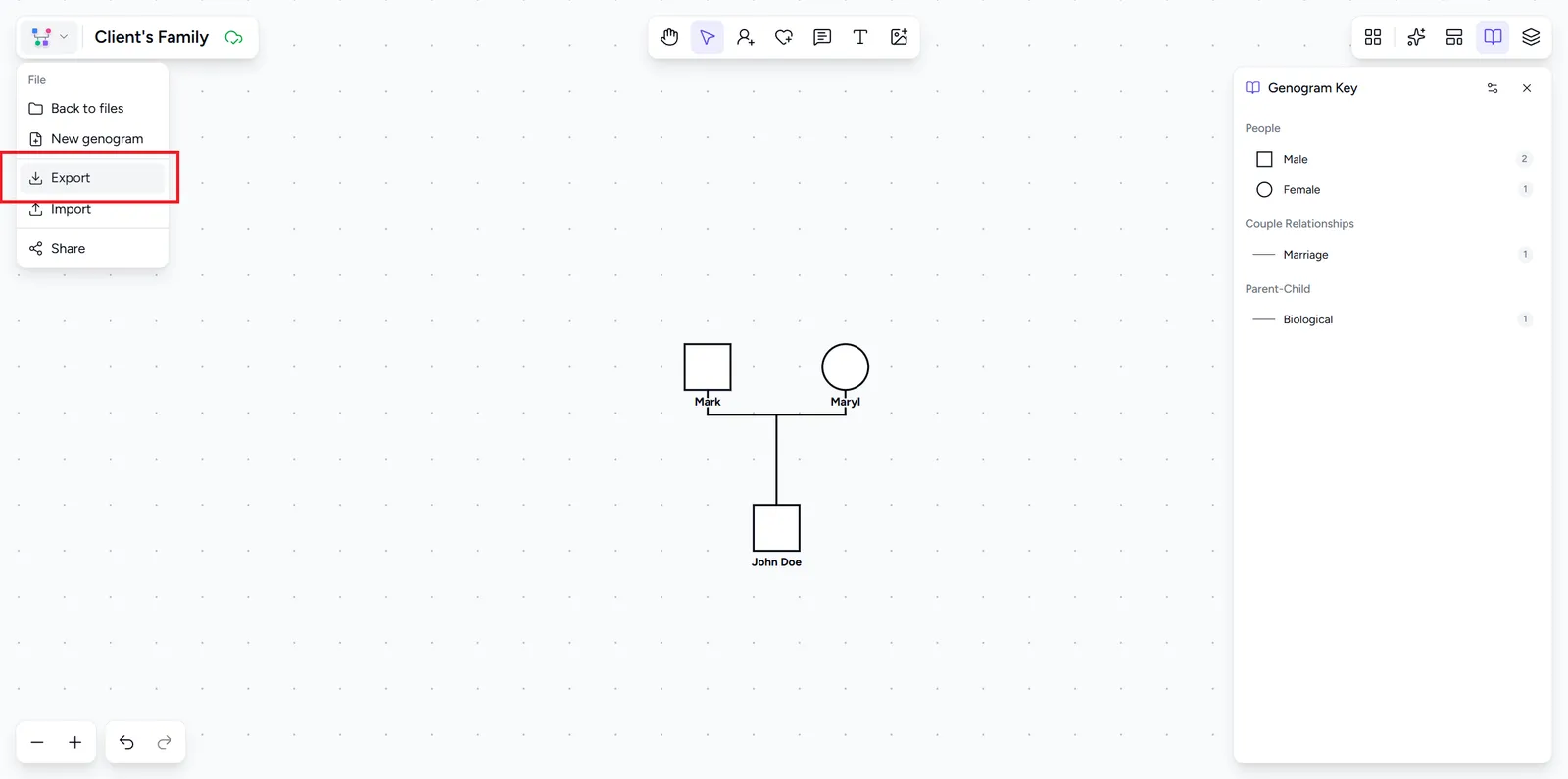
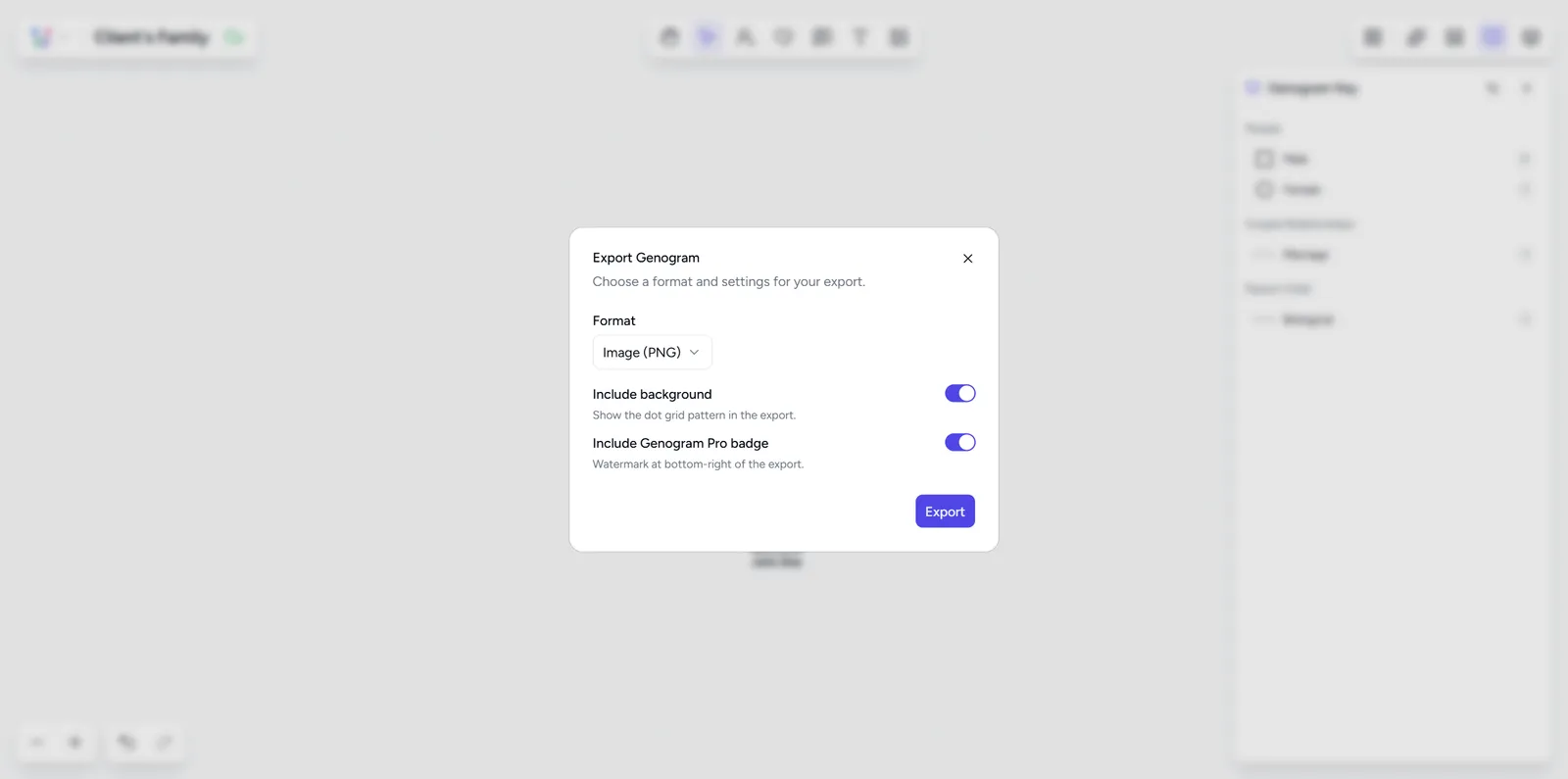
To export, open the editor menu (the logo, top left) and choose Export. Pick PNG for documents and slides or PDF for printing, decide whether to keep the dot-grid background and the Genogram Pro badge, then select Export. Data formats and the legend are covered in Exporting.
That is the whole loop: add, connect, record, arrange, export. The rest of these docs go deeper on each step.